
Create a Portfolio
MoneyPeak gives you four different ways to set up your portfolio — from fully automatic broker sync to manual entry. Choose the method that fits you and your brokerage setup best.
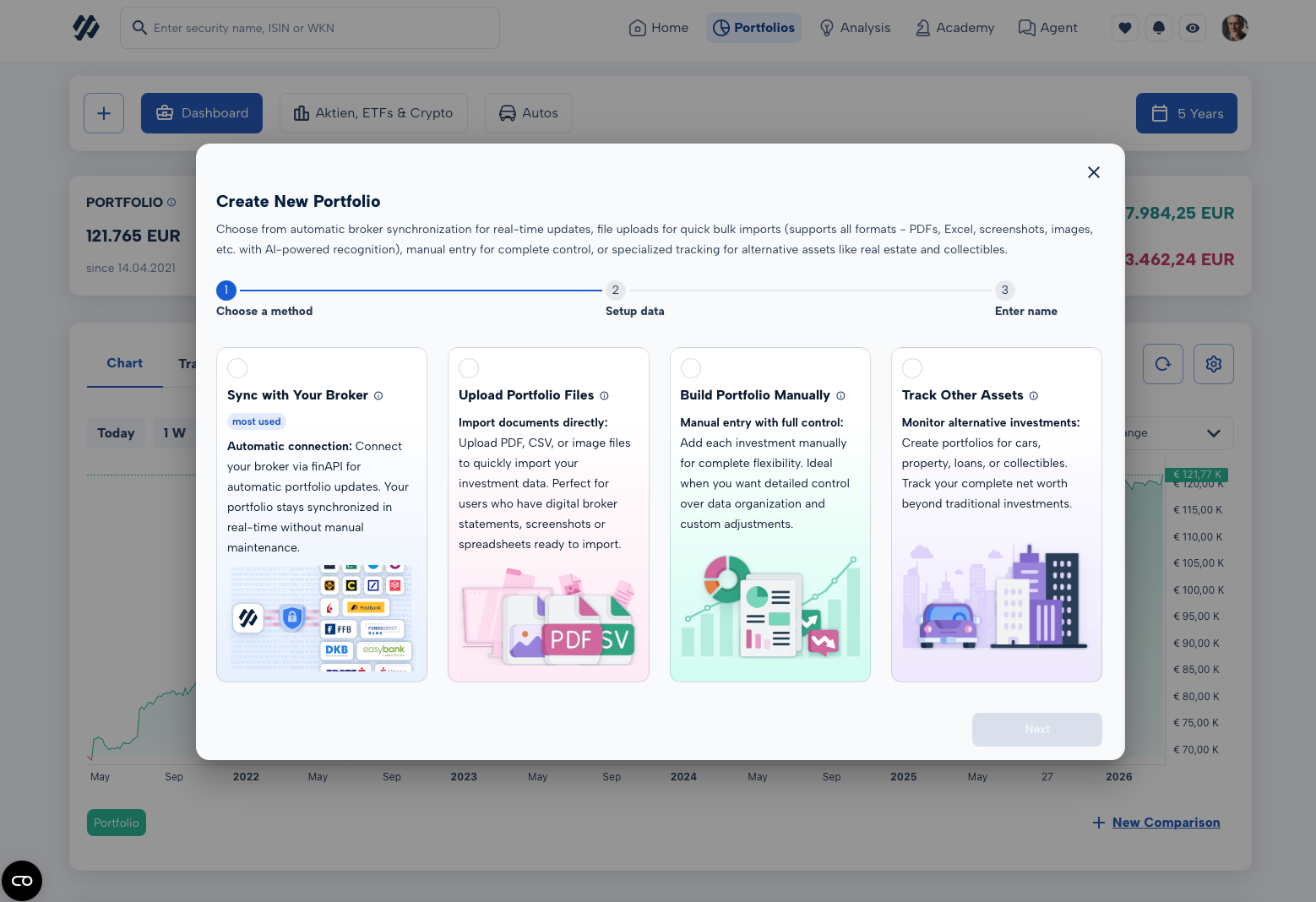
Automatic Synchronization
The most convenient option: connect your broker or bank directly to MoneyPeak via FinAPI. Once connected, your positions, transactions, and balances are imported in real time — no manual steps required.
How to set it up
- Click the + button at the top of the portfolio overview.
- Select "Connect Broker / Bank".
- Find your broker in the list and follow the FinAPI authentication flow.
- MoneyPeak imports your positions automatically and keeps them up to date.
File Upload
Have a portfolio statement as a PDF, a CSV export from your broker, or a screenshot? Simply upload it — our AI analyzes the document and builds your portfolio automatically.
Supported formats
- PDF – portfolio statements, annual tax certificates
- CSV / XLSX – broker exports, custom spreadsheets
- Images – screenshots (PNG, JPG, WEBP)
How to do it
- Click the + button in the portfolio overview.
- Select "Upload File".
- Drop your document into the upload area or select it from your device.
- Review the detected positions and confirm the import.
Manual Entry
Full control from the start: create an empty portfolio and add your positions one by one. You define the security, purchase date, purchase price, and number of shares yourself.
How to do it
- Click the + button in the portfolio overview.
- Select "Create Manually" and give your portfolio a name.
- Search for a security (stock, ETF, cryptocurrency, etc.).
- Enter the purchase date, price, and quantity, then save the position.
- Repeat steps 3–4 for each additional position.
Other Assets
MoneyPeak is more than a stock tracker. You can also track real estate, vehicles, loans, precious metals, and collectibles — for a complete picture of your total net worth.
Supported asset classes
- Real estate – apartments, houses, land
- Vehicles – cars, motorcycles, boats
- Loans & liabilities – mortgages, instalment loans
- Precious metals & commodities – gold, silver, platinum
- Collectibles – art, watches, sneakers, trading cards
How to do it
- Click the + button in the portfolio overview.
- Select "Other Asset".
- Choose the category, then enter a name, current value, and any optional details.
- The asset appears in your total net worth overview.